Vibe Coding, from your couch.
Continue the same desktop task from your phone.
iPhone App · iOSAndroid · development preview
Search the app store: chat键盘
- ↓Download on computer↓Open scannerPair devices
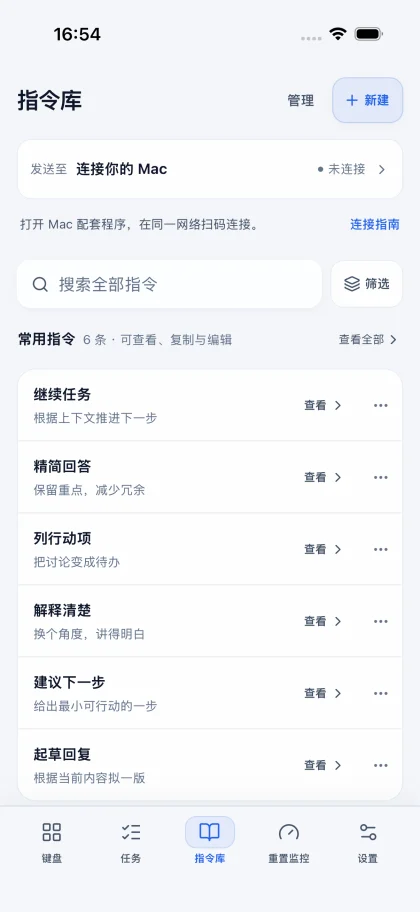 Connect Mac
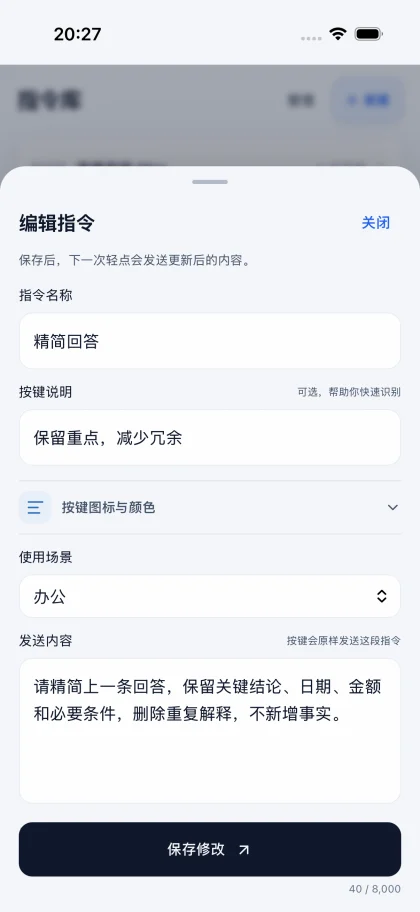 Set a prompt
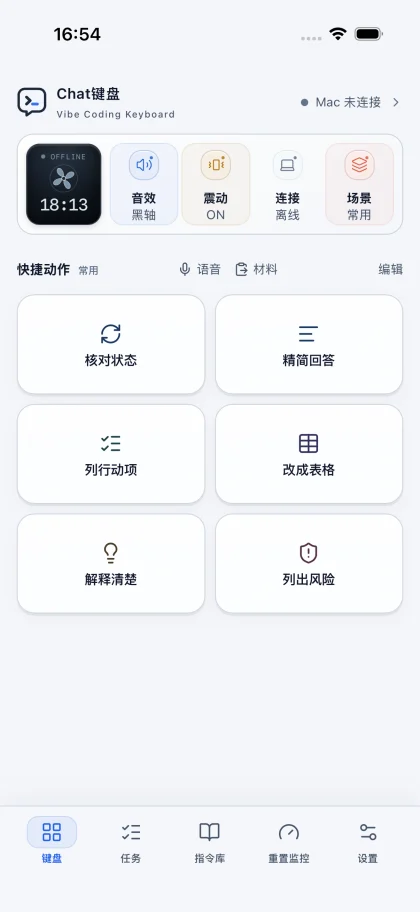 Quick actions
 Chat KeyboardVibe Coding Keyboard
Continue the same desktop task from your phone.
Search the app store: chat键盘
Connect MacSet a promptQuick actionsM-series chip · macOS 13 or later
Download for Apple Silicon1.0 · 37.8 MBUnzip, move to Applications, then open to pair.
Intel processor · macOS 13 or later
Download for Intel1.0 · 39.6 MBUnzip, move to Applications, then open to pair.
Windows 11 · 64-bit (x64)
Download Windows beta1.0.0-preview.2 · 113.4 MBInstall, then open the pairing window from the system tray.
Not sure? Check Apple menu → About This Mac.
The Windows public beta is for evaluation and feedback. Code signing and Windows 11 end-to-end acceptance are not complete.
4ab392f9df37c6127c2fff17bc8305a04aff53765b1ae3b80eebf6d27b22d9481c841b715623f0a5c9c780aabd082486db5854f2dcd3aad9f87a77d74b5e15f429b0f9a47a9f2ce750bea70bf51985aa24f96378268355dab28292041763c0ceOn Mac, open Chat Keyboard Mac from Applications. On Windows, open its system tray window. Find the QR or pairing code and keep the companion running.
Connect both devices to the same reachable Wi-Fi / local network. In Chat Keyboard, open the computer connection screen, scan the QR code, and confirm the computer name.
Open or create a task in Codex on your computer. Select it in recent tasks on your phone and tap a prompt such as Continue task. Progress and replies stay in the same conversation.
Your browser will ask to open the app. If nothing opens, launch Chat Keyboard Mac from Applications. On Windows, open the pairing window from the tray.
No. This website provides downloads and instructions. The companion on your computer creates the code with its device identity. A browser cannot read desktop tasks or replace the companion.
Yes. Use a local network where the phone and computer can reach each other. Keep the computer awake and companion running. Public Internet control is not available; guest Wi-Fi may isolate devices.
The computer companion is free. The phone app includes a successful-send trial. A lifetime purchase removes this app’s send limit; it does not include AI membership or model credits.
Usually not. Keep the companion running on the same network and the phone will try to rediscover the paired computer. Reconnecting never automatically resends a command. Check an uncertain receipt before trying again.